
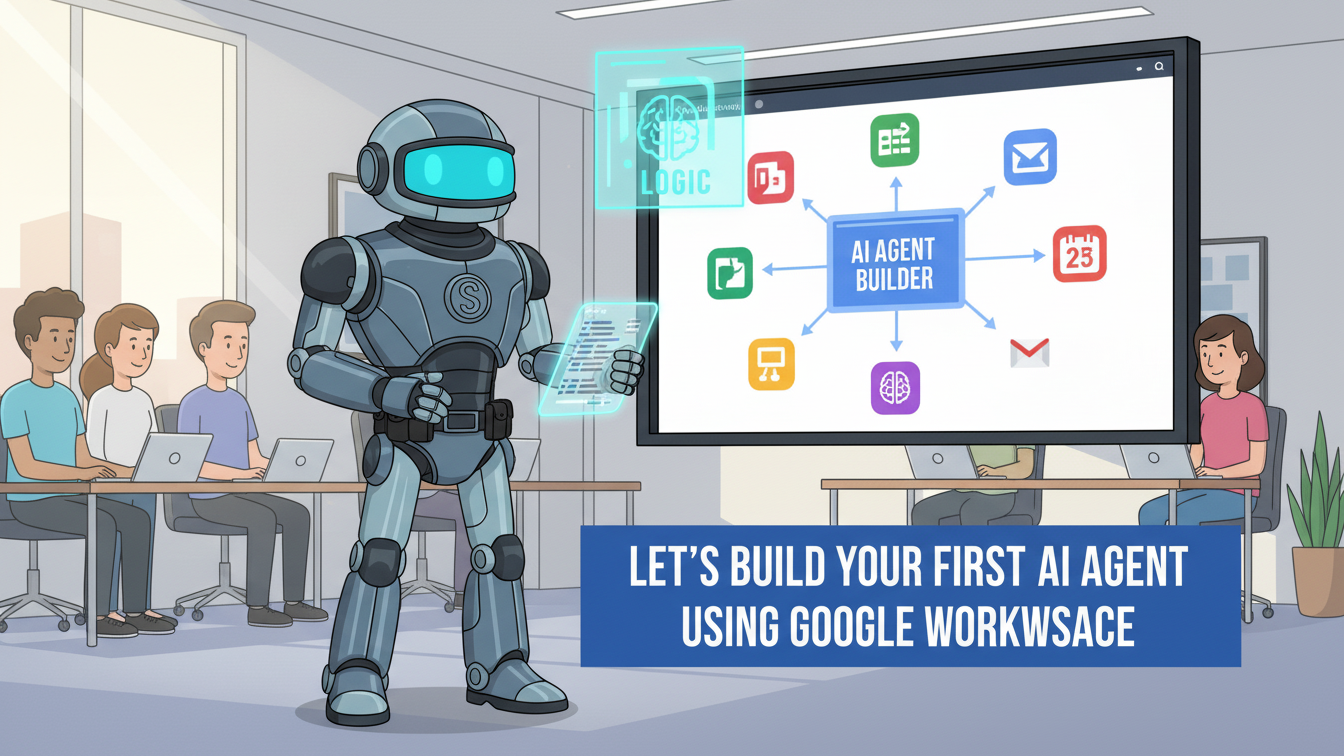

A Step-by-Step Guide for the Practical Professional
In my last article, I talked about the power of autonomous AI agents in business operations. Now, I want to get practical. If you’re running on the Google stack—Gmail, Drive, Sheets, Chat—you have a phenomenal, user-friendly tool at your fingertips for creating these digital employees: Google Workspace Studio (or similar features often referred to as “Flows” or “Agent Designer” within the Workspace ecosystem).
I’ve spent countless hours navigating the intricacies of custom automation tools. What excites me most about the Workspace approach is its democratization of AI agent creation. You don’t need to be a developer to build an agent that handles a multi-step task across your apps.
This guide is for you, the Operations Manager, the Power User, and the Small Business Owner who knows their workflow pain points better than anyone. It’s a playbook based on personal success, community research, and the sheer simplicity of building agents with natural language.
The Core Advantage: Native Simplicity (Ease of Use)
The biggest barrier to adopting autonomous agents is the complexity of setup. This is where the Gemini Agent built in Workspace Studio shines.
- Go-To Use Case: Automating the internal triage, processing, and reporting of data (e.g., from an email or a form submission).
- Target Audience: The Business Power User. You live in Sheets, you manage your team in Chat, and your day starts in Gmail. You are technical enough to write a good prompt but don’t want to touch a line of code.
- Ease of Use: Extremely High. You build the agent by describing the task in plain language and then visually connecting the steps.
In short: you describe the problem, Gemini builds the draft solution, and you click the connections to refine it.
🚀 Case Study: My Autonomous Meeting Prep Agent
My personal biggest time sink was prepping for important external meetings. It involved checking my calendar, digging through my email history for context, and summarizing relevant documents. I built an agent to handle this exact process, and it saved me 30 minutes before every major client call.
The Goal: A daily pre-meeting summary delivered to me in Google Chat.
The Blueprint (The Agent’s Workflow)
- Trigger (Perception): Calendar—A scheduled event.
- Filter/Reasoning: AI Step—Determine if the meeting is external (based on domain name) and happening within the next hour.
- Data Retrieval (Action 1): Gmail—Search for all past emails with the attendees’ email addresses.
- Data Retrieval (Action 2): Drive—Search for documents in a “Client Files” folder that contain the client’s name.
- Synthesis (AI Step): Gemini—Take the results from Steps 3 and 4, and prompt: “Summarize the key discussion points, any open action items, and relevant document links into a 5-point briefing note. Keep the tone professional.”
- Final Action: Google Chat—Send the generated briefing note to my personal Chat space.
This is a true autonomous agent: it perceives an event (the meeting), reasons about its importance (external), retrieves and synthesizes information across multiple apps (Gmail, Drive), and executes a final, valuable action (sending the Chat message).
🛠 How to Create Your Own Agent in Workspace Studio (The Practical Steps)
Creating an agent is an iterative process of defining the Trigger, the AI Logic, and the Action steps. Here’s a distillation of my experience in the studio.
Step 1: Start with a Simple Prompt
Don’t overthink the initial description. The beauty of the Gemini integration is that it can draft the structure for you.
- Where to Start: Go to Google Workspace Studio (or look for the “Automate” or “Flows” section in your Workspace admin tools).
- The Power Prompt: In the “Describe a task for Gemini” box, be specific:Bad Prompt: “Automate my emails.”Good Prompt: “When I receive an email labeled ‘Invoice Request’ in Gmail, extract the Sender Name and Amount, add a new row with this data to my ‘Invoice Tracking’ Google Sheet, and send a summary message to the #Finance team in Google Chat.”
Gemini will instantly generate a visual, multi-step flow that attempts to match your description.
Step 2: Refine the Steps (The No-Code Builder)
This is where you, the expert of your workflow, come in. You’ll be presented with a visual canvas where you can edit, reorder, or add steps.
Key Techniques I Use:
- Define the Trigger: Always ensure your agent starts precisely when you need it to.
- My Tip: Using the Schedule Trigger (e.g., “Every Monday at 9 AM”) or a Specific Email/File Trigger (e.g., “When a file is added to a specific Drive folder”) is far more reliable than a broad one.
- Mastering the Variables (The Handoff): The data extracted from one step is called a variable and must be passed to the next step. This is the lifeblood of the autonomous agent.
- Example: If Step 1 is “Read Email,” the output might be variables like
{{Email.Sender}}and{{Email.Body}}. You must manually select these and feed them into Step 2, which might be an “Ask Gemini” step. - Prompt Example: “Analyze this email body:
{{Email.Body}}. If the tone is negative, output ‘Urgent Follow-Up,’ otherwise output ‘Standard Reply.'”
- Example: If Step 1 is “Read Email,” the output might be variables like
- Harnessing the AI Steps for Reasoning: Instead of just sending data, let the AI decide or transform it.
- The “Ask Gemini” Step: Use this for summarization, translation, or creative text generation (e.g., drafting a polite reply).
- The “Decide” Step: This is the game-changer. Use it to create forks in your workflow. Prompt: “Decide if this form response (the variable) indicates the customer is a high-value lead.” The output,
YesorNo, dictates the next action (e.g., push to the sales pipeline or send an automated nurture email).
Step 3: Implement the Actions & Connections
The final steps execute the physical task across your apps.
- Google Sheets: The agent can Add a new row, Update a cell, or Search for values.
- Practical Tip: Always make sure your Sheet headers are clearly named. This reduces the chance of the agent making a mistake when inserting data from a variable.
- Google Chat: Essential for the Human-in-the-Loop—the agent sends a notification or summary for human review.
- Third-Party Apps: Workspace Studio is expanding its pre-built connectors (Jira, Salesforce, etc.). Always check the available integrations before resorting to custom code.
Step 4: Test, Debug, and Refine
Your first agent will probably break. That’s fine. It’s a key part of the experience!
- Use the
Test RunFeature: Before you “Turn On” your agent, use theTest Runfeature. It will allow you to simulate the trigger (e.g., feeding it a sample email) and watch the flow, step-by-step, to see where the variables fail or where the AI logic goes astray. - Refine the Prompt: If the agent is missing crucial details, don’t change the workflow; change the prompt in the “Ask Gemini” step. More context means better reasoning.
Go-To Use Case: The Autonomous Intake Agent
If you are just starting, build this agent. It’s a high-impact, low-complexity win.
The Task: Process generic new requests that come in via email and create a structured tracking log in a Google Sheet.
| Step | Application | Action / Prompt | Variable Usage |
| 1. Trigger | Gmail | When an email arrives in the “Requests” folder. | {{Email.Sender}}, {{Email.Subject}} |
| 2. Reasoning | Ask Gemini | Analyze the {{Email.Body}} and {{Email.Subject}}. Prompt: “Determine the primary request type (e.g., Support, Sales, General Inquiry) and summarize the core task into a short sentence.” | {{Ask_Gemini.Output}} (the summary) |
| 3. Action | Google Sheets | Add a new row to the “Intake Log” sheet. | Column 1: {{Email.Date}}Column 2: {{Email.Sender}}Column 3: {{Ask_Gemini.Output}} (The summary) |
| 4. Notification | Google Chat | Send a message to the intake team’s Chat space. | “New request logged: {{Ask_Gemini.Output}} from {{Email.Sender}}. Check the Intake Log Sheet for details.” |
This four-step agent transforms unstructured email data into clean, logged, actionable data, all without human intervention. This is what modern operations look like.
Start small, test often, and let your new digital workforce handle the tedious parts of your day. You’ll be amazed at how quickly you can move from a simple task to orchestrating complex, multi-app workflows.
Ready to get hands-on? Which part of your current workflow, involving Gmail, Sheets, and Chat, is the biggest headache right now?

Responses (0)
Be the first to respond.